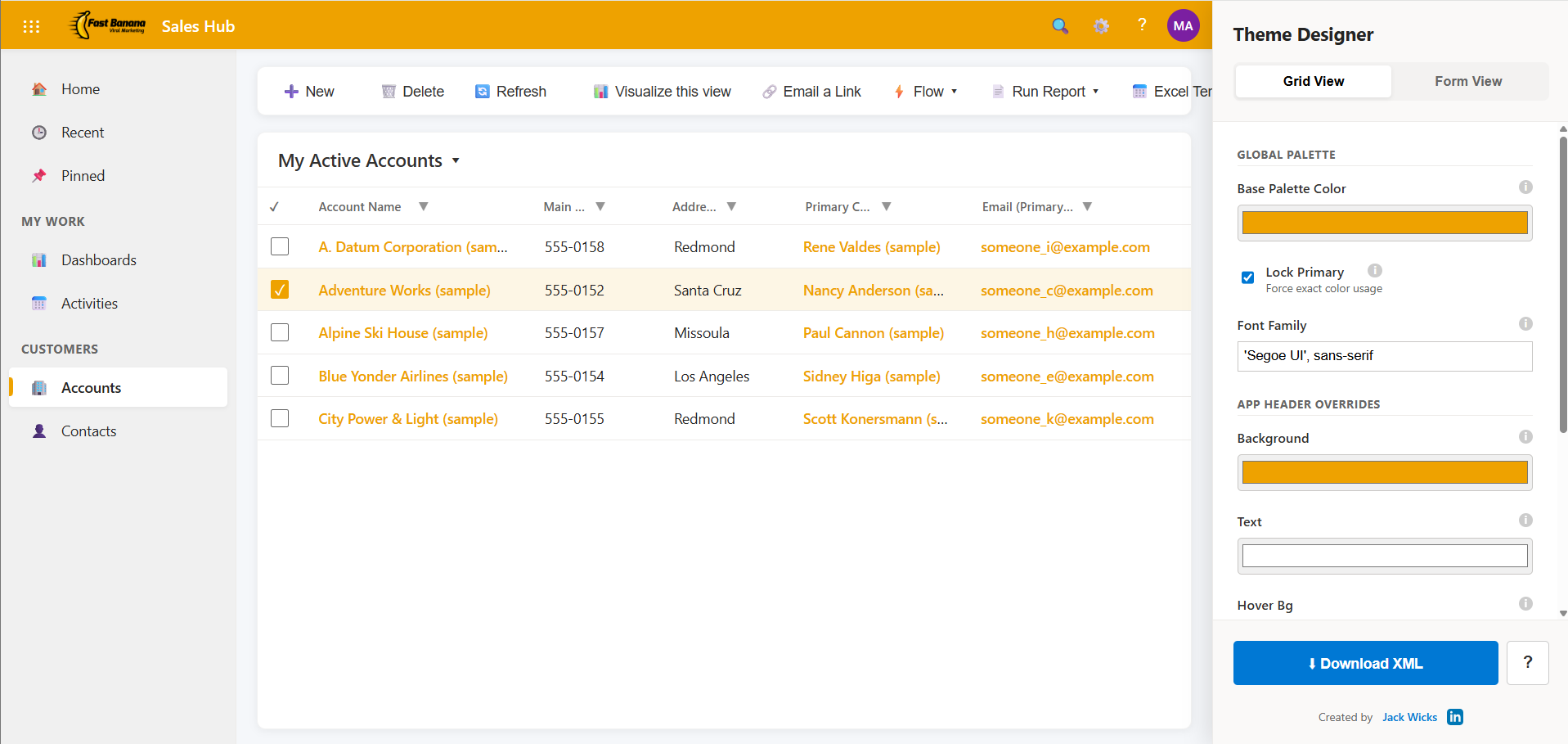
My years in presales have been spent building a lot of demos, and one thing I always like to do is update the theme to match the customer’s brand colours. It adds that extra layer of polish and personalization that really makes a difference.
Back in the day, there was a fantastic tool for this—the Dynamics CRM Theme Generator by Guido Preite. It was a staple for many of us. But ever since Microsoft introduced the Modern Look (Fluent UI) for Model-Driven Apps, theming has become a bit of a… painful process. The old methods don’t quite work the same way, and figuring out the XML for the new modern overrides involves a lot of trial and error.
So, to solve this problem—not only for those of us doing constant demos but also for anyone required to make modern themes, I present to you: The Modern Theme Generator!
What Does It Do?
This tool simplifies the entire process of creating a custom look for your Model-Driven Apps. It allows you to:
- Pick Your Colors: Choose a base brand color and see it instantly applied to a realistic preview.
- Preview in Real-Time: See exactly what your theme will look like on both Grid Views and Form Views. No more publishing and refreshing just to see if a blue is “too blue.”
- Upload Your Logo: Upload your customer’s (or your own) logo to the preview. This ensures the colors you pick actually complement the branding.
- Pro Tip: Upload the logo first, then use the browser’s eyedropper tool to pick the exact hex code from the image!
- Generate XML Instantly: Once you’re happy, just hit “Download XML” to get the exact file you need for your Solution.
Try It Out
Want to give it a go? Check it out here https://jack-wicks.co.uk/ModernThemeDesigner
How to Use It
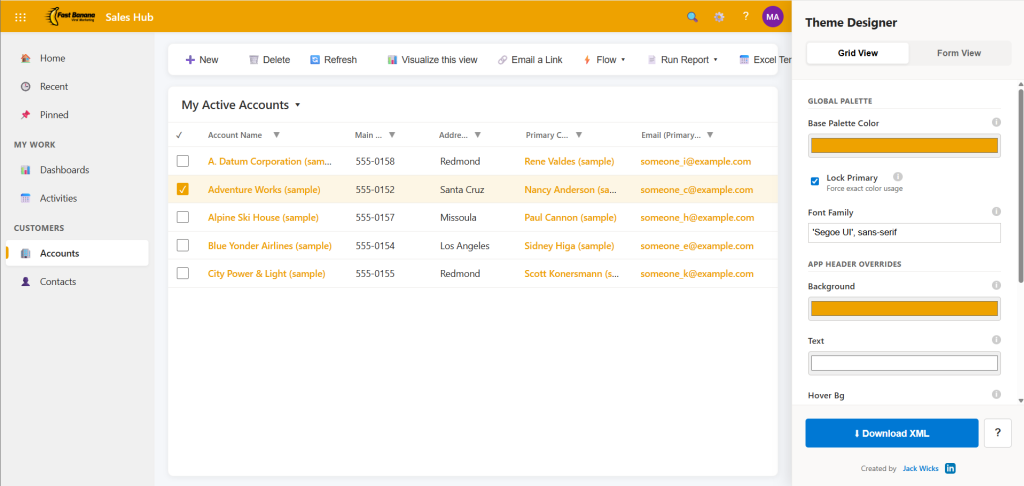
- Set Your Brand Color: Use the color picker in the sidebar to select your primary brand color. You’ll see the buttons, links, and tabs update instantly.
- Customize the Header: If you want a specific background color for the top navigation bar (like a dark grey or navy), you can override that separately.
- Check the Form View: Use the toggle at the top to switch between the “Grid View” (list of records) and the “Form View” (record details) to make sure everything looks perfect.
- Download & Apply: Click the Download XML button to get your file.
Need Help Uploading?
If you get stuck on how to actually get this into Dynamics 365, you can also refer to the Microsoft Documentation on Modern Theme Overrides. I’ve also added a handy Help (?) button in the bottom corner of the tool that walks you through the steps.
I hope this saves you as much time as it has saved me. Happy theming!
Leave a Reply